
Deployment and Usage of Fasoo Secure Viewer (FED-M) for Secure Mobile Document Access
This document outlines the deployment and usage of the Fasoo Secure Viewer mobile application (FED-M) for securely accessing Fasoo-protected documents on iOS and Android devices. The purpose of this document is to support installation, configuration, and validation of mobile access to encrypted content while ensuring enforcement of enterprise DRM policies in mobile environments.
1. Installation
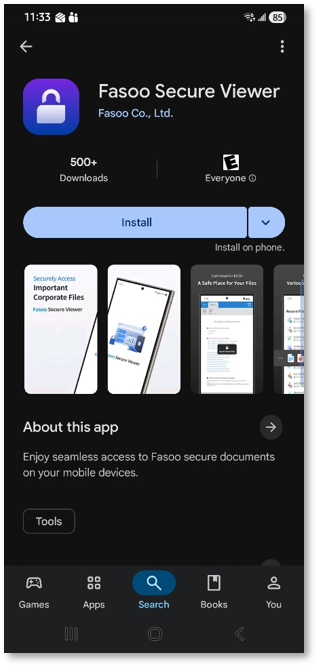
Open the Google Play Store on your mobile device and search for Fasoo Secure Viewer.
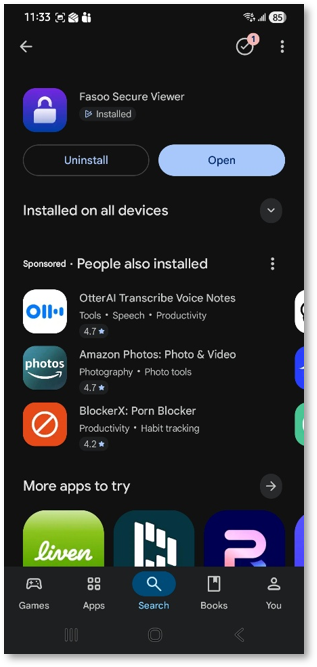
Install and open the Fasoo Secure Viewer application
2. Setup and Configuration
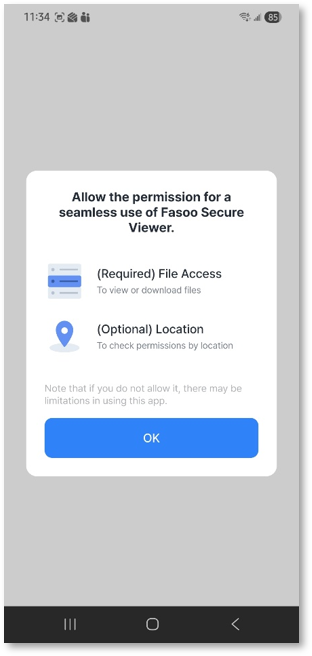
Upon launching Fasoo Secure Viewer for the first time, you will be prompted to allow permissions required for proper functionality.
Click “OK” to continue.
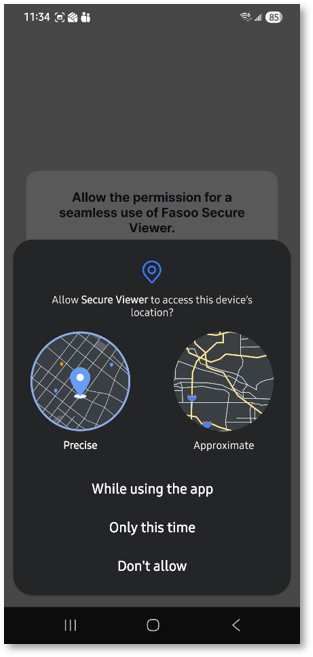
You will then be prompted to grant location access. Select “While using the app” to proceed.
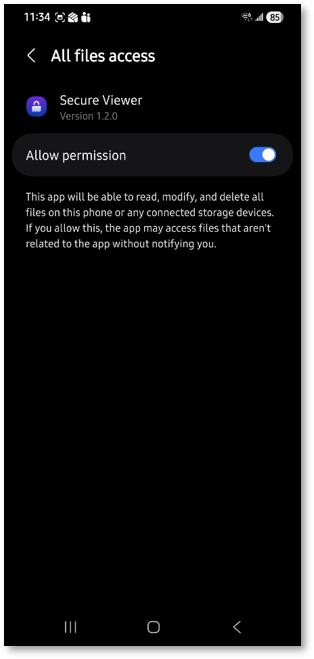
You will then be prompted to grant permission for file access. Select “Allow” to proceed.
3. Accessing Files
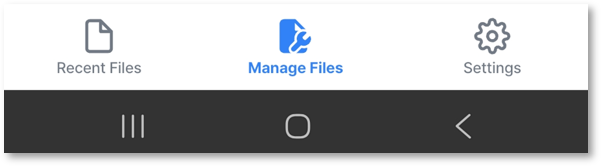
Once the required permissions have been granted, you can navigate your device’s files by selecting the “Manage Files” option located at the bottom center of the application screen.
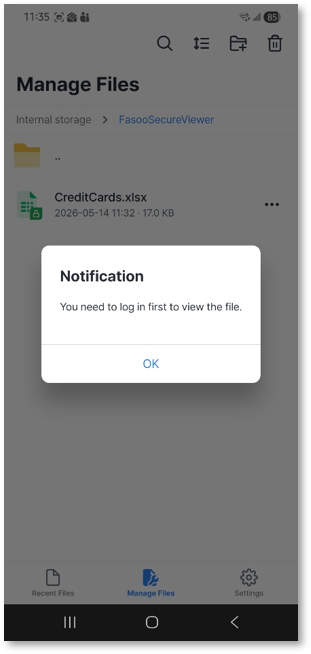
The first time you attempt to open an encrypted file, a notification will appear indicating that you must log in to view the file.
Click “OK” to proceed.
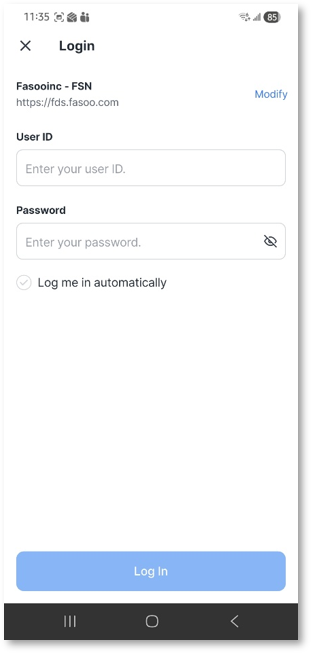
Enter your User ID and Password to log in to Fasoo Secure Viewer using your account credentials.
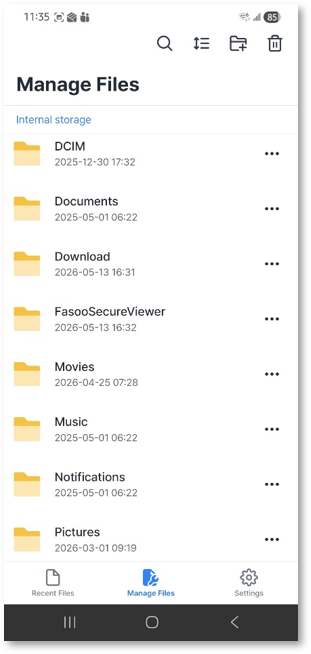
Alternatively, you may access encrypted files directly from your device’s email or local storage.
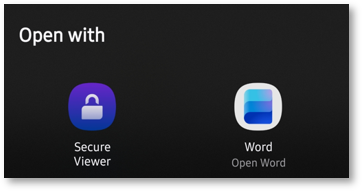
When opening the file, select the option “Open in another app”, “Select app”, or “Open with”, and choose
Fasoo Secure Viewer from the list of available applications.
Note: Screen capture functionality is disabled while using the application, in accordance with DRM security policies and best practices to prevent unauthorized data exposure.